Sharing my best Disneyland tips to help you master Disneyland’s mobile ordering. This feature is one of the smartest time-savers at the parks—skip the long food lines and place your order right from the Disneyland app.
Disneyland Tips
One of my favorite Disneyland tips is to use mobile ordering through the official Disneyland App. It cuts down wait times dramatically and makes mealtime far more relaxing. Below I’ll walk you through each step so you can use mobile ordering like a pro and spend more time enjoying the parks.
For additional ideas, see the blog post titled “Become a Pro Using Disney Max Pass.” You can also follow Disney food accounts on social media for recommendations and photos of the best eats at the parks.
Download the Disneyland App
First, download the Disneyland App and sign in to your Disney account. If you don’t have an account, creating one takes just a few minutes. I recommend doing this before you arrive at the parks so everything is ready ahead of time.
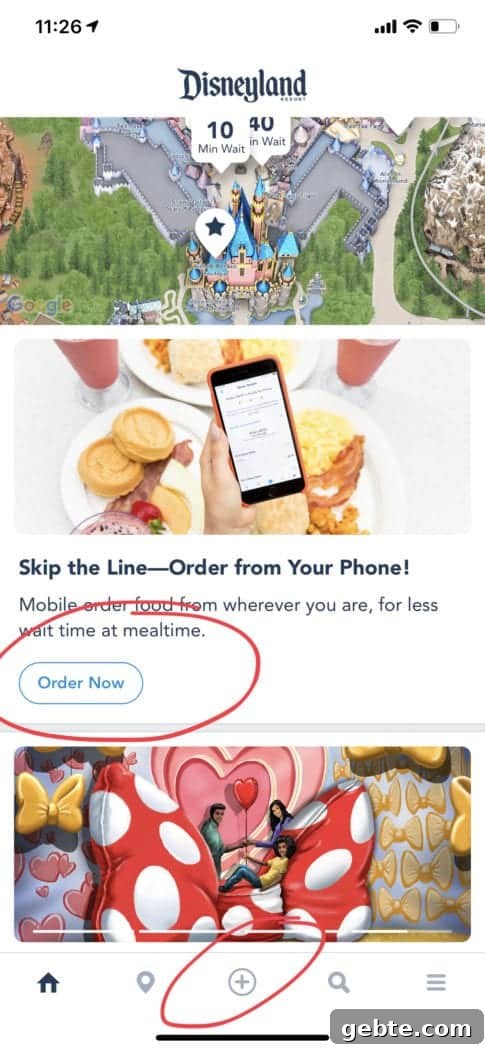
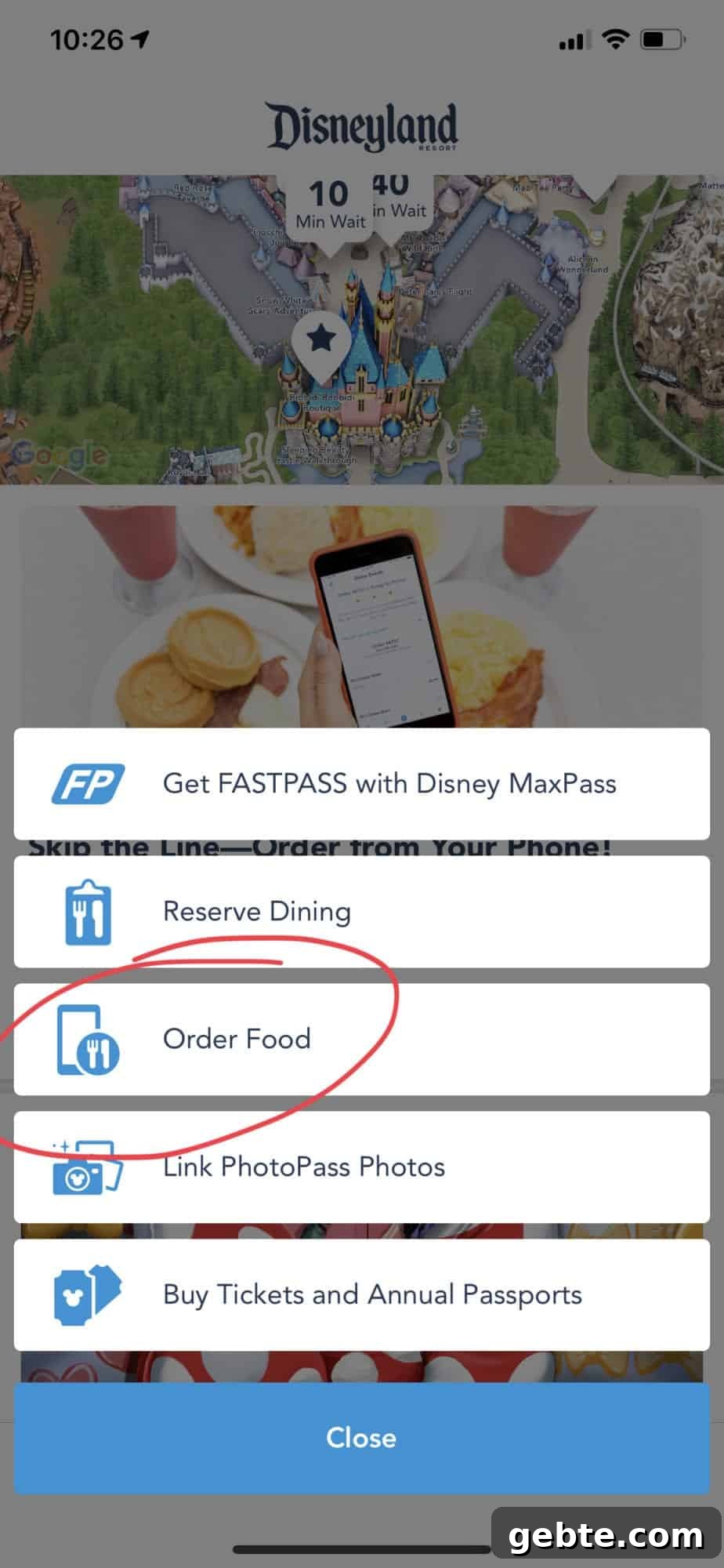
When you open the app, tap the plus sign at the bottom of the screen or the “Order Now” button—either will take you to the mobile ordering area.
Disneyland Mobile Ordering
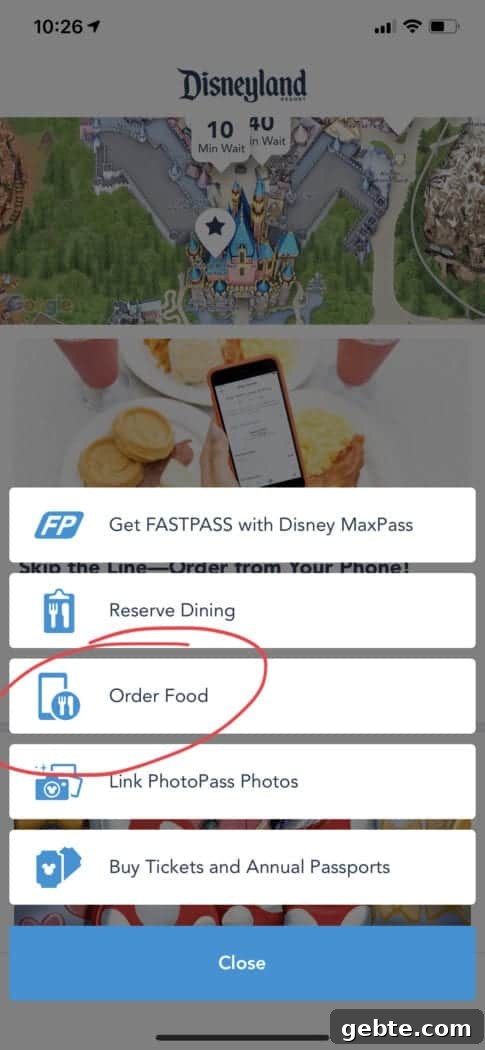
From this screen, choose “Order Food” to see participating locations and menus.
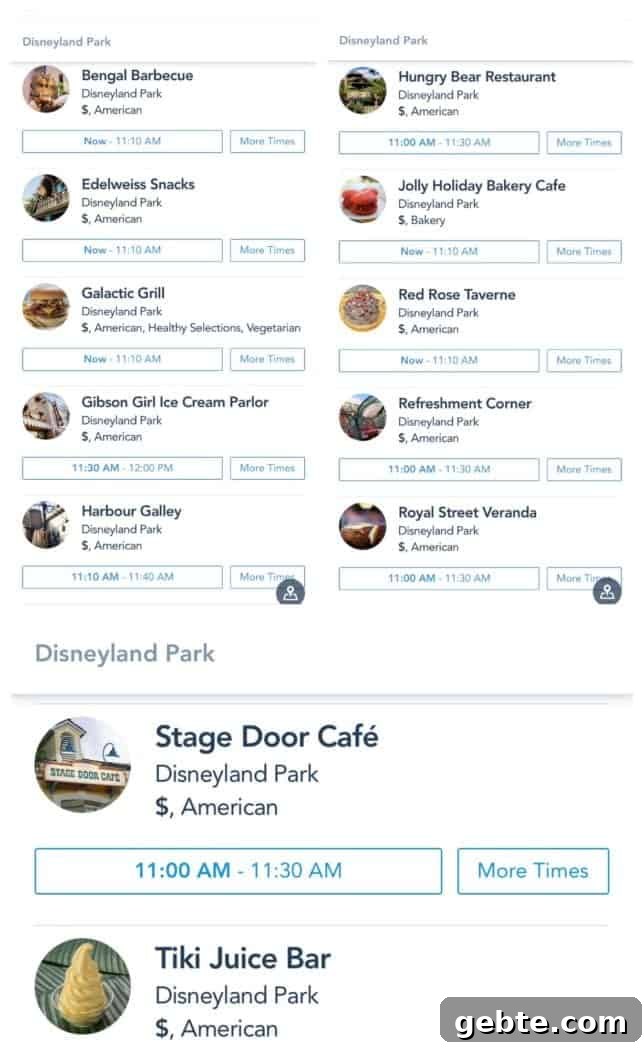
Restaurants Offering Mobile Ordering
The app shows the restaurants with Mobile Ordering available. The image above displays options in Disneyland Park.
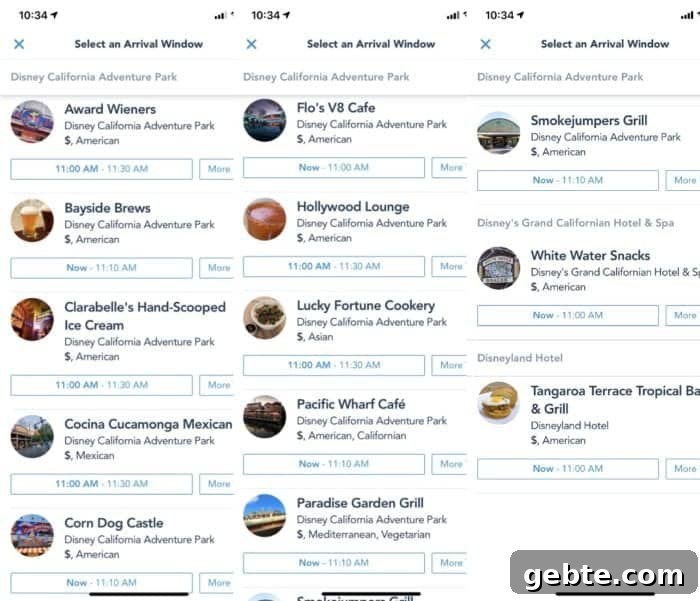
Disney California Adventure Mobile Ordering
This screenshot highlights the restaurants in Disney California Adventure Park that support Mobile Ordering.
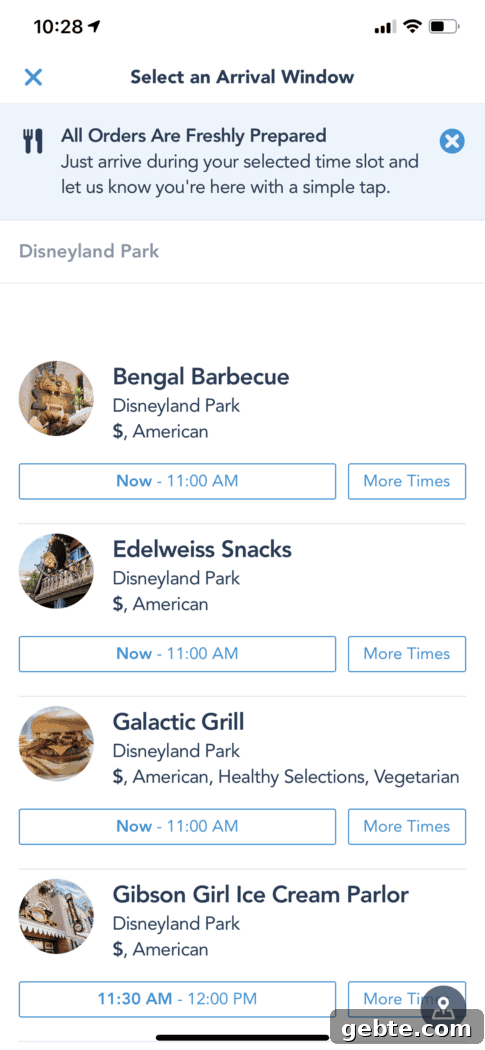
Select Your Restaurant
Scroll through the list and tap the restaurant you want. Menus and items for that location will load so you can make selections.
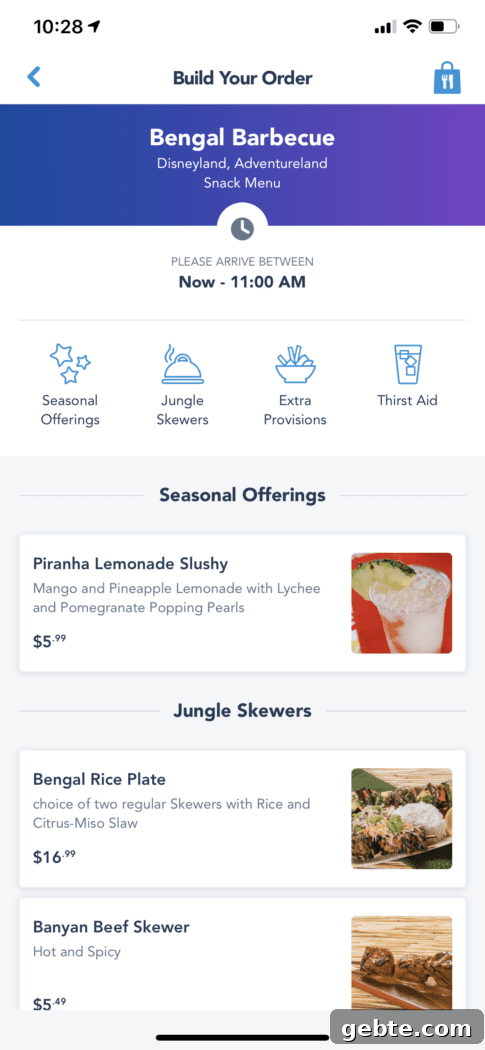
For this example I chose Bengal Barbecue in Adventureland at Disneyland Park—one of my favorites. Its lines can get long during peak meal times, so mobile ordering has saved me a lot of time.
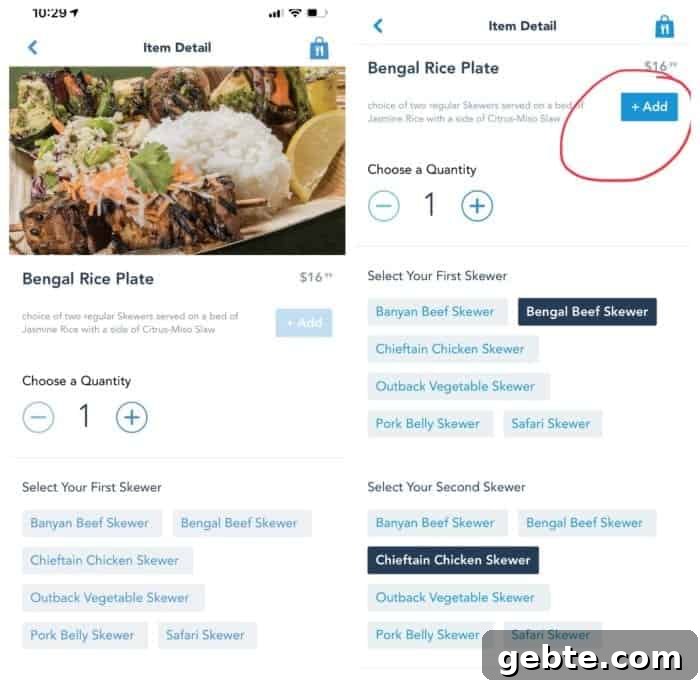
Make Your Selection
After choosing a restaurant, pick the menu items you want. Each screen guides you step by step: select quantity and any options, then tap the ADD button to include the item in your order.
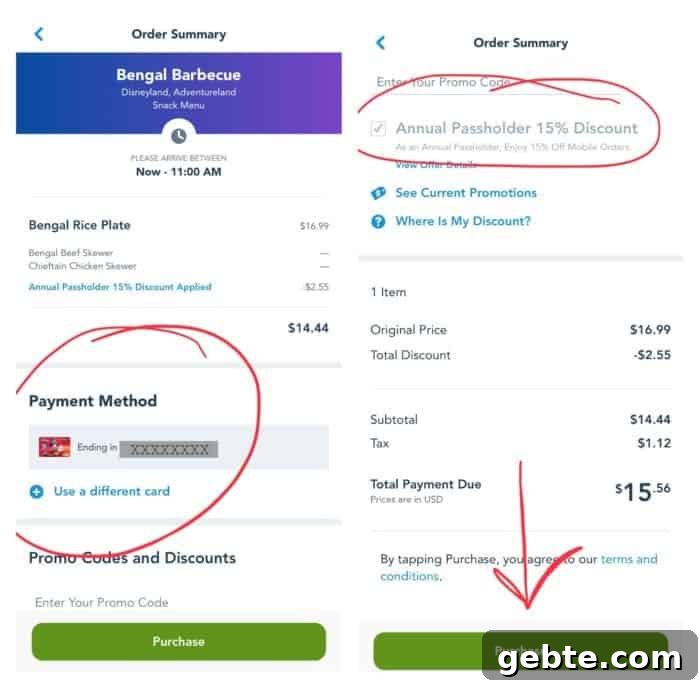
Payment & Discounts
Review your order and proceed to payment. If a credit card is already linked to your Disney account, you can complete the purchase quickly. Annual Passholder discounts apply when your pass is linked to your account. To use a Disney Gift Card, enter the card number in the promo code field during checkout.

Find the Mobile Order Pick Up Window
Each location with Mobile Ordering has a separate pick up window clearly labeled “Mobile Order Pick Up.” Keep the app open and you’ll receive a notification when your order is being prepared and when it’s ready. The app visually tracks progress so you can time your arrival at the pick up window.
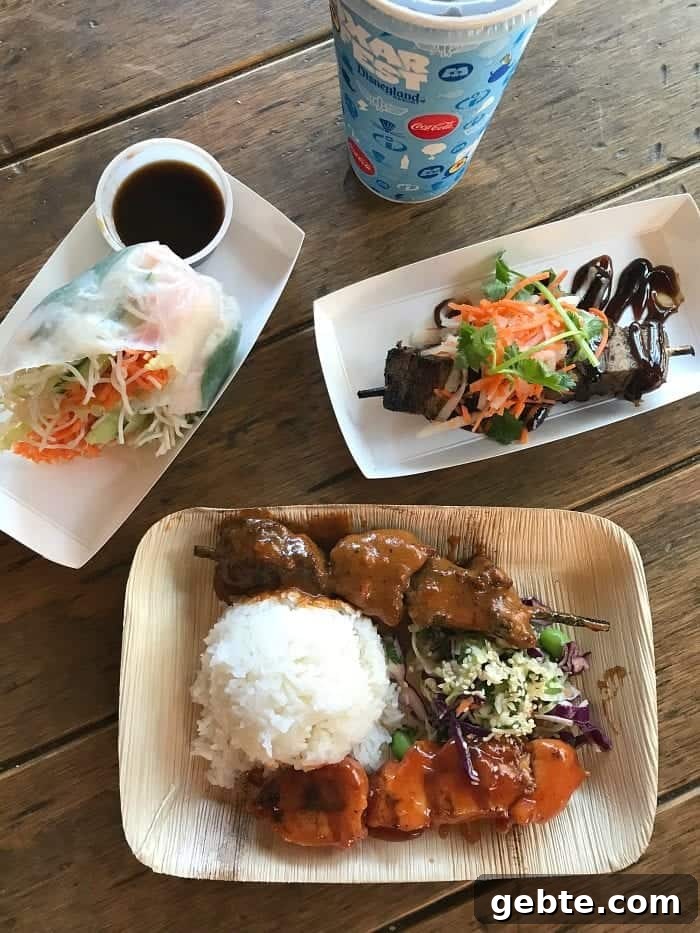
Using mobile ordering typically reduces wait to just a few minutes. In my experience, pick up rarely takes longer than about five minutes once the order is ready—making it a fantastic feature for busy days.
Pro Tips for Mobile Ordering
- Download the Disneyland App and sign in before your trip so you’re ready to order when you arrive.
- You can place orders ahead of time and schedule pickup for a later window—no need to order only when you’re standing at the counter.
- Locate the Mobile Order Pick Up window for your chosen restaurant before your order is ready so you know where to go.
- Some seasonal or limited-time menu items may not appear in Mobile Ordering. If you’re after a specific seasonal dish, check ahead to confirm availability.
Pin: Become a Pro Using Disneyland Mobile Ordering